

Securely Add USDT (BEP20) to Your MetaMask Wallet
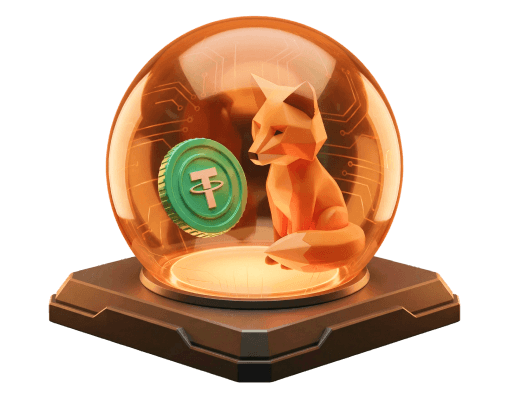
Why You Need to Manually Add USDT to MetaMask
MetaMask defaults to the Ethereum network and does not automatically display tokens from alternative blockchains like the BNB Smart Chain (BSC). To view a USDT (BEP20) balance, users must configure MetaMask for the BSC network and manually import the USDT token contract.
Step 1: Connect Your MetaMask to the BNB Smart Chain (BSC)
To view BEP20 tokens, MetaMask must first connect to the BNB Smart Chain.
Access Network Settings
Open the MetaMask extension or mobile app. Click the network dropdown menu at the top, typically labeled 'Ethereum Mainnet', and select 'Add network'. Choose the option to 'Add a network manually'.
Enter BSC Network Details
Input the official BNB Smart Chain network parameters into the corresponding fields. Set the Network Name to 'BNB Smart Chain', the New RPC URL to 'https://bsc-dataseed.binance.org/', the Chain ID to '56', the Currency Symbol to 'BNB', and the Block Explorer URL to 'https://bscscan.com'.
Save and Switch
Click 'Save'. MetaMask will add the network and automatically switch to it. The native currency will change from ETH to BNB, confirming a successful connection to the BSC network.
Step 2: Securely Find the Official USDT Contract Address
Adding USDT requires the exact smart contract address on the BNB Smart Chain. Scammers frequently deploy fake tokens with identical names. Interacting with fraudulent contract addresses can lead to permanent loss of funds.
Always source contract addresses from authoritative platforms like CoinGecko, CoinMarketCap, or the official BscScan block explorer. Look for the Tether (USDT) token listing featuring a verified blue checkmark for the BNB Smart Chain (BEP20) network.
The official Binance-Peg USDT (BEP20) contract address is: 0x55d398326f99059ff775485246999027b3197955
Never trust contract addresses provided by unverified sources through direct messages, social media, or community forums.
Step 3: Import USDT (BEP20) into Your Wallet
Once connected to BSC with the correct contract address, you can make the USDT balance visible by adding it directly to MetaMask.
- Open MetaMask and ensure the active network is set to BNB Smart Chain.
- Click the 'Import tokens' link located at the bottom of the assets list.
- Navigate to the 'Custom Token' tab and paste the official USDT contract address into the 'Token Contract Address' field.
- MetaMask should automatically detect and populate the 'Token Symbol' as USDT and 'Token Decimals' as 18. Click 'Add Custom Token'.
- Click 'Import Tokens' to finalize the token addition.
The USDT (BEP20) balance will now appear in the wallet overview. A zero balance indicates no USDT is currently held at that specific BSC address. Alternatively, desktop users can click the MetaMask icon on the token page of platforms like BscScan or CoinGecko to prompt an automatic import.
Essential Security Practices for Managing Your Tokens
Proper asset management extends beyond token importation. Implement these security practices to protect cryptocurrency holdings.
Verify All Addresses
Always verify wallet addresses before sending or receiving USDT. A single typographical error will send funds to an unrecoverable destination.
Bookmark Trusted Sites
Bookmark official URLs for block explorers, data aggregators, and cryptocurrency exchanges. This prevents accidental navigation to malicious phishing websites mimicking legitimate platforms.
Beware of Unknown Smart Contracts
Never interact with or grant token spending approvals to unrecognized smart contracts. Malicious contracts can drain tokens entirely from a connected wallet.
Protect the Secret Recovery Phrase
The 12- or 24-word Secret Recovery Phrase grants total control over the wallet. Never share this phrase, avoid storing it digitally in plaintext, and secure all physical copies.
Use a Hardware Wallet
For maximum security, pair MetaMask with a reputable hardware wallet like Ledger or Trezor. Hardware wallets store private keys offline, protecting them from remote exploits.
Troubleshooting: What to Do If Things Go Wrong
Users occasionally encounter technical issues when configuring networks or importing tokens. Use these solutions to resolve common problems.
USDT Balance Is Not Showing
Verify that MetaMask is set to the BNB Smart Chain rather than Ethereum Mainnet. Next, confirm the correct BEP20 contract address was imported. To verify the actual on-chain balance independently, paste the public wallet address into BscScan. The block explorer displays the true ledger record regardless of MetaMask interface glitches.
Failed Transactions
Executing transactions on the BNB Smart Chain requires BNB to cover network gas fees. Failed transactions often stem from an insufficient BNB balance. Keep a minimal amount of BNB in the wallet to cover transfer costs and decentralized application interactions.
Incorrect Network or Token Added
To hide a mistakenly added token, click the token in the asset list, open the menu, and select 'Hide'. To remove an incorrect network configuration, navigate to the network settings, select the erroneous network, and delete it. Proceed to re-enter the correct BNB Smart Chain parameters.
Conclusion: Your Assets, Your Responsibility
Configuring MetaMask for the BNB Smart Chain and importing USDT (BEP20) follows a strict logic: establish a connection to the correct blockchain network, then use an official smart contract address to add the token.
Diligence and security remain paramount in decentralized finance. Verifying contract addresses across multiple authoritative sources and maintaining operational security prevents permanent asset loss.
This article provides technical instructions and does not constitute financial or investment advice. Users operate at their own risk and should consult professionals before making financial decisions in the cryptocurrency market.
Frequently asked questions
-
Can I send USDT (ERC20) from Ethereum to my BSC address in MetaMask?
No. While the wallet address remains identical across both networks, USDT ERC20 exists on Ethereum, whereas USDT BEP20 operates on the BNB Smart Chain. Sending tokens directly between different blockchains without utilizing a specialized cross-chain bridge results in permanent loss of funds. -
Why is my USDT balance not showing after I added the token?
The wallet is likely connected to the wrong network. Ensure MetaMask is set to the BNB Smart Chain. If the network configuration is correct, a temporary display lag might be occurring. Paste the public wallet address into the BscScan explorer to verify the definitive on-chain balance. -
Is the USDT BEP20 contract address the same on all websites?
The single official USDT BEP20 contract address is universally identical. Scammers, however, deploy fraudulent tokens with different addresses utilizing the USDT name and logo. Always source the exact contract address from reputable platforms like BscScan, CoinGecko, or CoinMarketCap. -
What is the difference between USDT BEP20 and USDT TRC20?
Both represent the Tether (USDT) stablecoin but operate on entirely different blockchain networks. USDT BEP20 functions on the BNB Smart Chain, while USDT TRC20 runs on the TRON network. They require distinct contract addresses and rely on different native coins for transaction fees. -
Do I need BNB in my wallet to manage USDT on the BNB Smart Chain?
Yes. BNB serves as the native asset of the BNB Smart Chain and pays for network gas fees. Transferring USDT, swapping tokens, or interacting with decentralized applications requires a small fraction of BNB to process the transaction on the ledger.
Crypto guides
Beginner-frendly
Finding a Kriptomat Alternative in 2026
 Alexey Morozov
|
Alexey Morozov
|
Phemex & MiCA: Your 2026 Guide to EU-Compliant Crypto Alternatives
 Oliver Grant
|
Oliver Grant
|
Navigating the MiCA Landscape: A Guide to Bitunix Alternatives for EU Users
 Farouk Ahmed
|
Farouk Ahmed
|
